
GUIDE: How to Upload Certificates and Other Documents in the Portal
Follow these steps when you receive an email notification asking you to upload a certificate or compliance document to the Portal.
Step 1: Open the task from your Dashboard
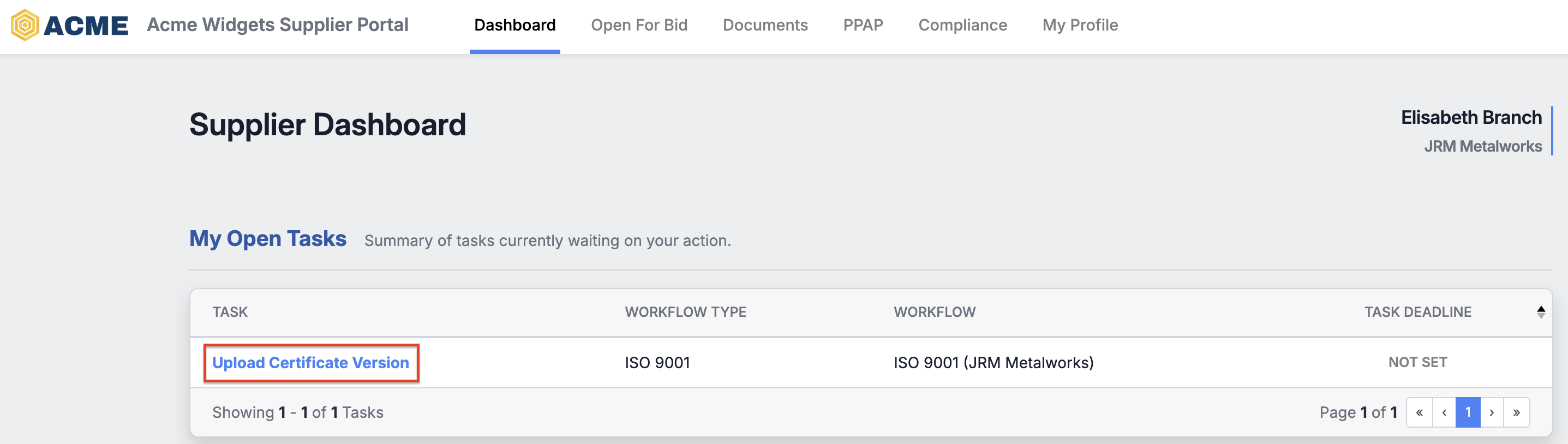
After logging in, go to your Dashboard. Under My Open Tasks, you will see a summary of all actions waiting on you.
Find the task named Upload Certificate Version (or similar, depending on the requested document) and click on the task name (shown as a blue link) to open it.
Step 2: Find the document on the Compliance page
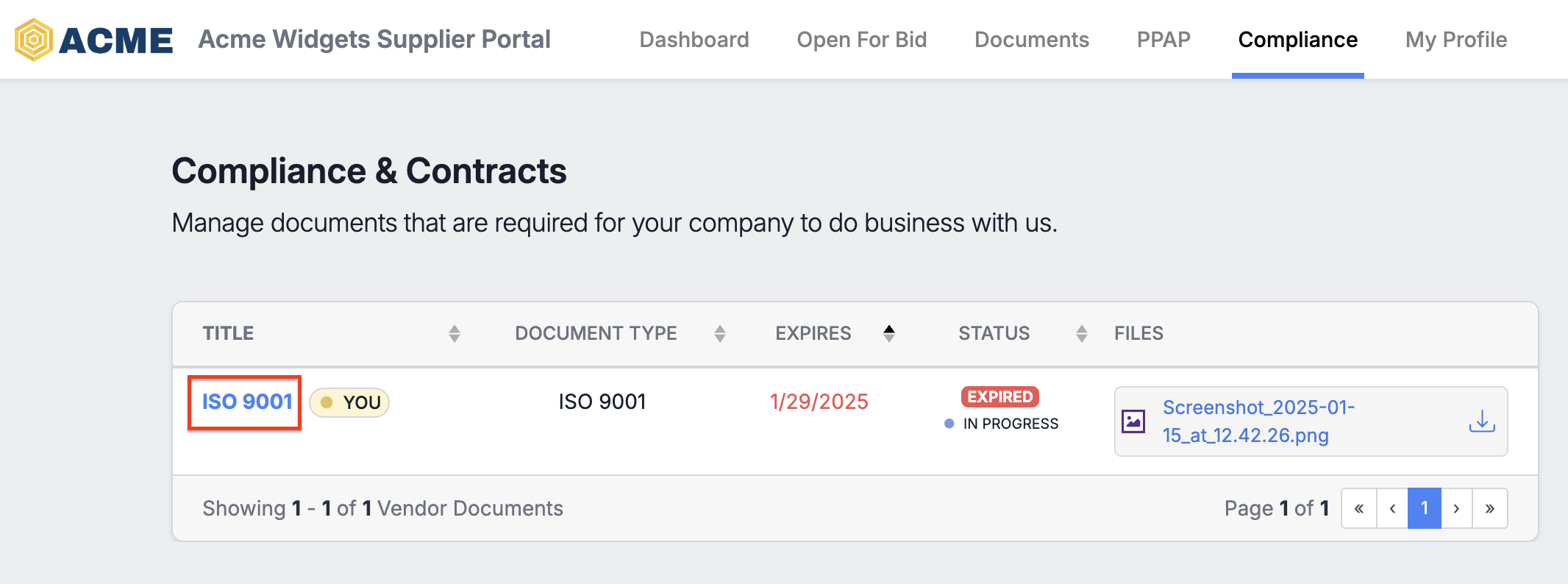
Clicking the task will take you to the Compliance page. Locate the document you need to upload (for example, ISO 9001) and click on its title to open it.
Step 3: Open the upload task in the document sidebar
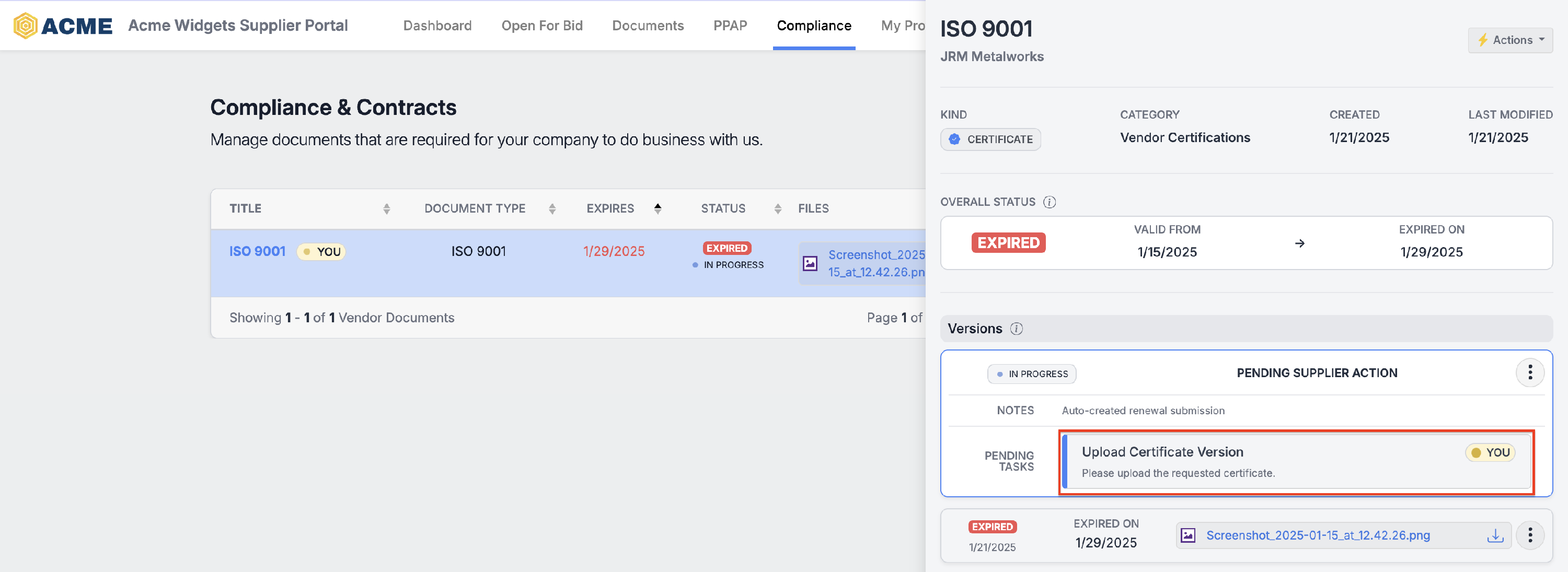
A sidebar will open showing details for that document, including its current status and version history.
Under Pending Tasks, click on Upload Certificate Version (or a similar task name) to open the upload form.
Step 4: Upload your file and submit for review
A form will appear with everything you need to complete the submission.
Simply upload your file(s), set the validity dates (most certificates will require this), and click Submit for Review (the button will become active once all the required information is added).
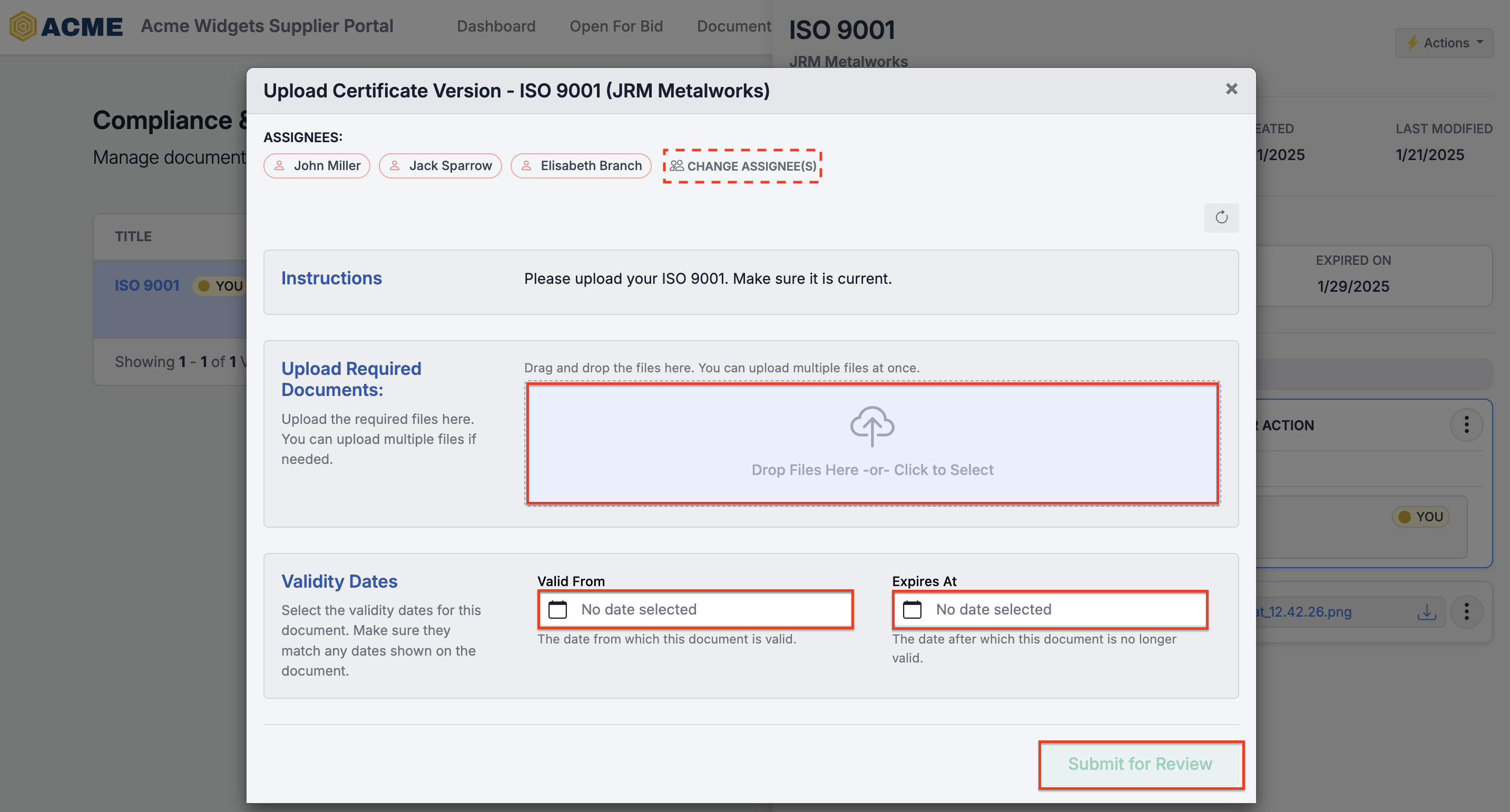
💡 Tip: If you're not the right person to upload this document, you can add your colleagues to the task by clicking Change Assignee(s) at the top of the submission form.